Targeted quantitation with HPLC data
This tutorial walks you through the workflow for analyzing targeted HPLC data starting from input file generation, to processing the data in SmartPeak, to reviewing the data in SmartPeak, to reporting the results for later use.
Objectives
Obtaining the SOP for the workflow.
Choosing a data set for demonstrating the workflow.
Creating an optimized SmartPeak input templates for running the workflow.
The Workflows include
Calculating the calibration curves using Standards
Processing Unknowns
Steps
The tutorial includes the following steps :
Setting up the input files
The data set used can be found in HPLC_UV_Standards and HPLC_UV_Unknowns for the HPLC UV Standards and HPLC UV Unknowns respectively.
Defining the workflow in SmartPeak
For HPLC UV Standards analysis, the following steps are saved
into the workflow.csv file. Alternatively, steps can be replaced,
added or deleted direclty from SmartPeakGUI.
A detailed explanation of each command step
can be found in Workflow Commands.
LOAD_RAW_DATA
MAP_CHROMATOGRAMS
EXTRACT_CHROMATOGRAM_WINDOWS
ZERO_CHROMATOGRAM_BASELINE
PICK_MRM_FEATURES
CHECK_FEATURES
SELECT_FEATURES
CALCULATE_CALIBRATION
STORE_QUANTITATION_METHODS
QUANTIFY_FEATURES
STORE_FEATURES
The calibration curve can be inspected after all workflow steps had been run, to do so please click on view and then “Calibrators”. From the transition tab select Antranilicacid and Indole as
transition_groupto plot their concentration curves within the given concentration range as shown below: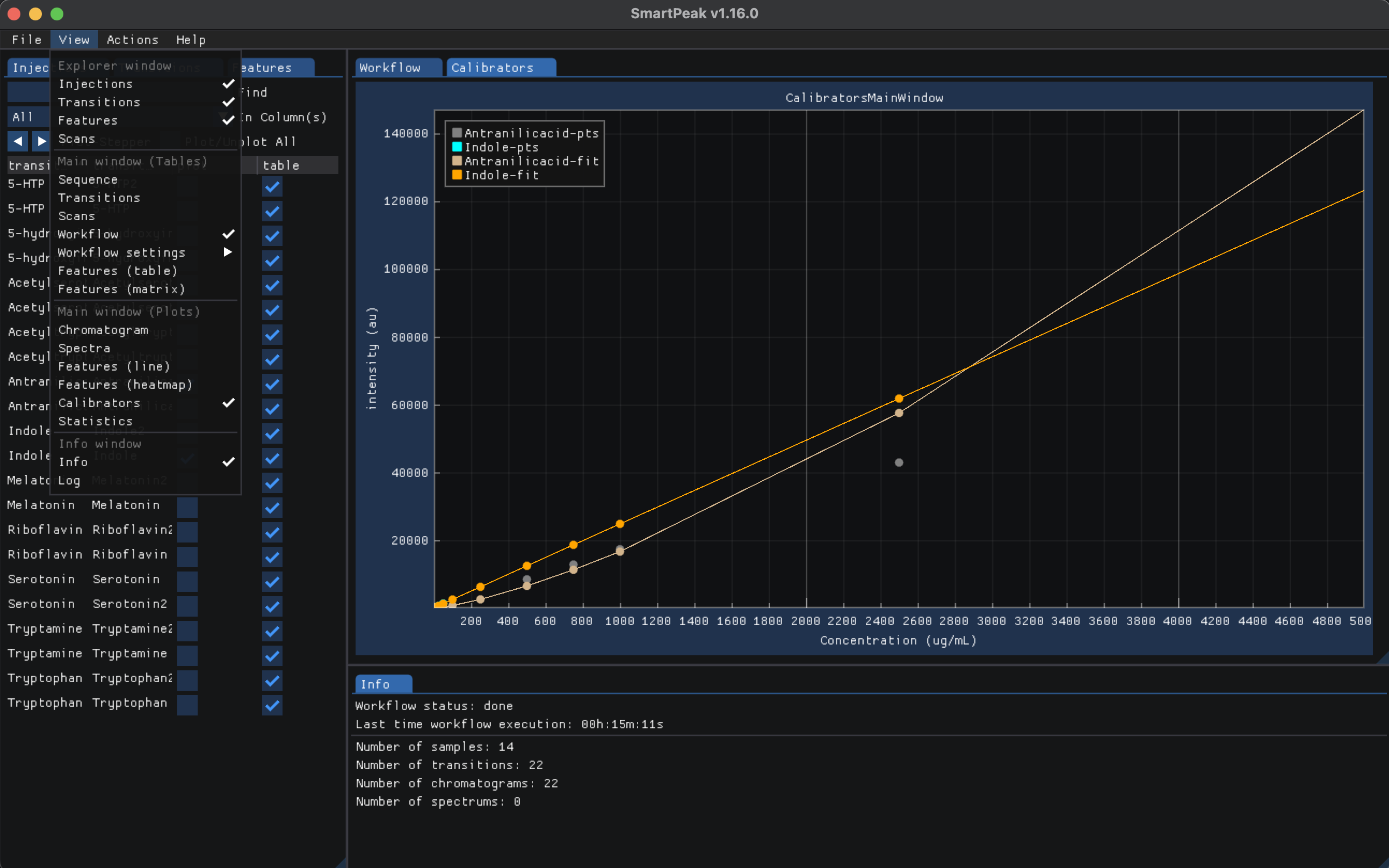
To inspect the features for the selected transition groups, select “Features (line)” from the view menu then open the features tab (can be opened from the view menu as well) to select the “asymetry_factors” and “logSN” in the plot column. The line plot illistrates the value for each transition group and feature as shown below:
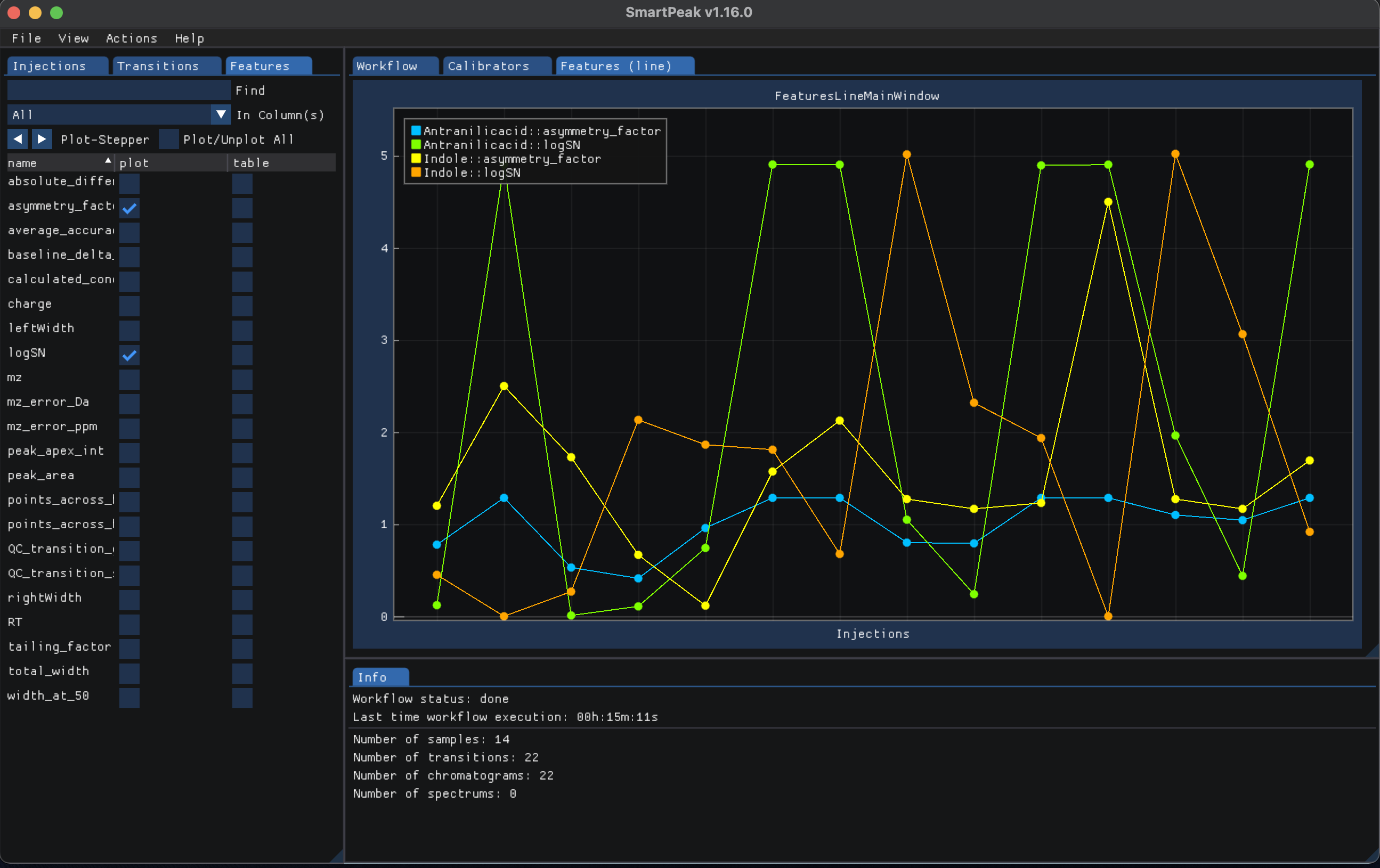
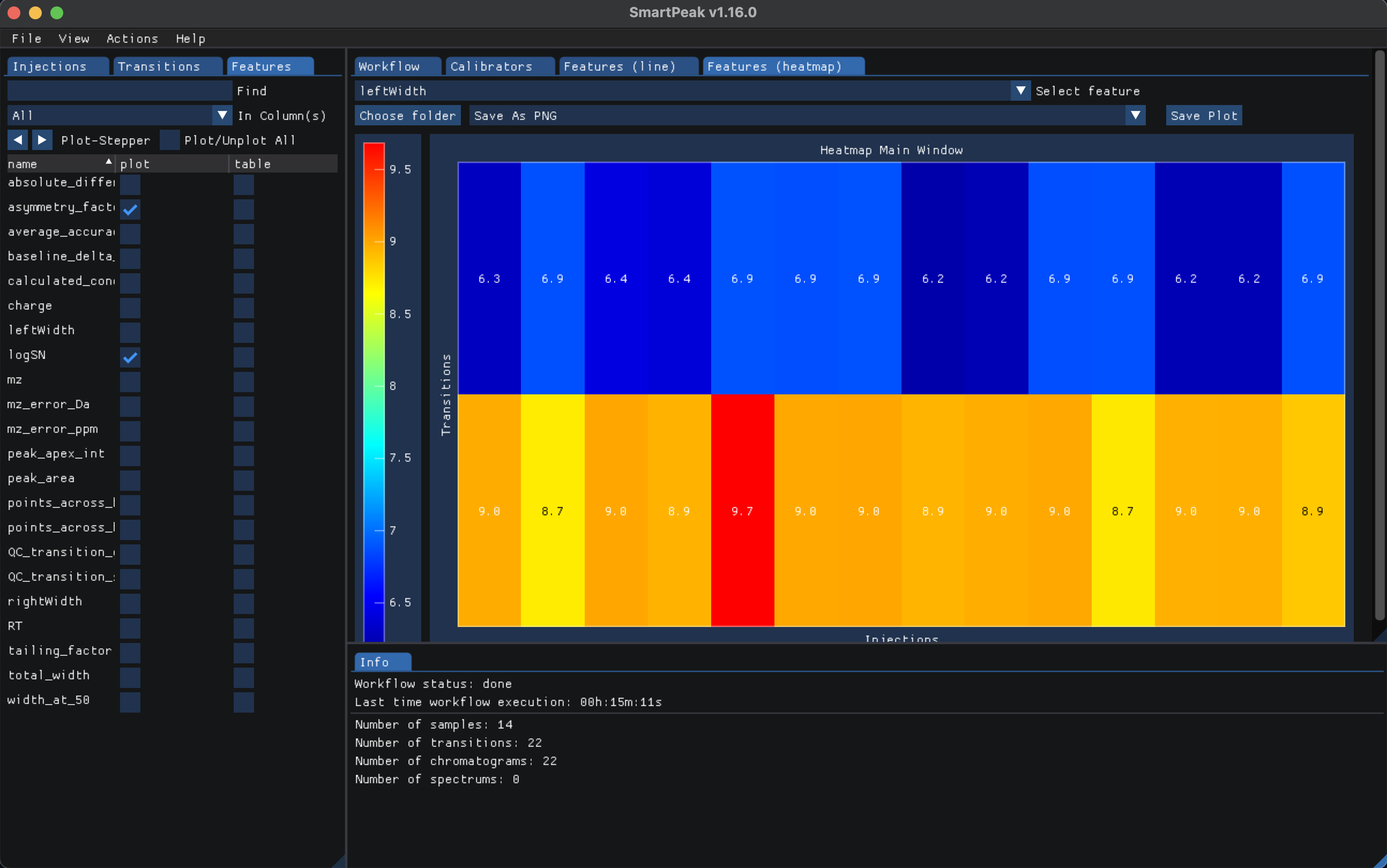
The features can also be plotted as a heatmap, under “view” select “Features (heatmap)” then select the “left_width” feature to display transition groups as a heatmap and compare the values from the same injection as shown below:
The workflow step
STORE_QUANTITATION_METHODSwrites the calibration model for each transition, an excerpt can be seen below:
Generated sequence1_quantitationMethods.csv¶ IS_name
component_name
feature_name
concentration_units
llod
ulod
lloq
uloq
correlation_coefficient
n_points
transformation_model
transformation_model_param_y_weight
transformation_model_param_y_datum_min
transformation_model_param_y_datum_max
transformation_model_param_x_weight
transformation_model_param_x_datum_min
transformation_model_param_x_datum_max
transformation_model_param_symmetric_regression
transformation_model_param_slope
transformation_model_param_intercept
_
Antranilicacid
intensity
ug/mL
0.0
0.0
0.5
2500
0.998679668124795
7
linear
ln(y)
-1.0e15
1.0e15
ln(x)
-1.0e15
1.0e15
FALSE
1.353587567241049
0.369814545757549
_
Indole
intensity
ug/mL
0.0
0.0
0.5
50.0
0.998763546720702
6
linear
ln(y)
-1.0e15
1.0e15
ln(x)
-1.0e15
1.0e15
FALSE
0.995574540930201
3.242340261658038
This file is used to apply the predefined calibration model to each transition by running the
QUANTIFY_FEATURESworkflow step.
The workflow steps for HPLC UV Unknowns are :
LOAD_RAW_DATA
MAP_CHROMATOGRAMS
EXTRACT_CHROMATOGRAM_WINDOWS
ZERO_CHROMATOGRAM_BASELINE
PICK_MRM_FEATURES
QUANTIFY_FEATURES
CHECK_FEATURES
SELECT_FEATURES
STORE_FEATURES
To inspect the features for the selected transition groups, select “Features (line)” from the view menu then open the features tab (can be opened from the view menu as well) to select the “asymetry_factors” and “logSN” in the plot column. The line plot illistrates the value for each transition group and feature as shown below:
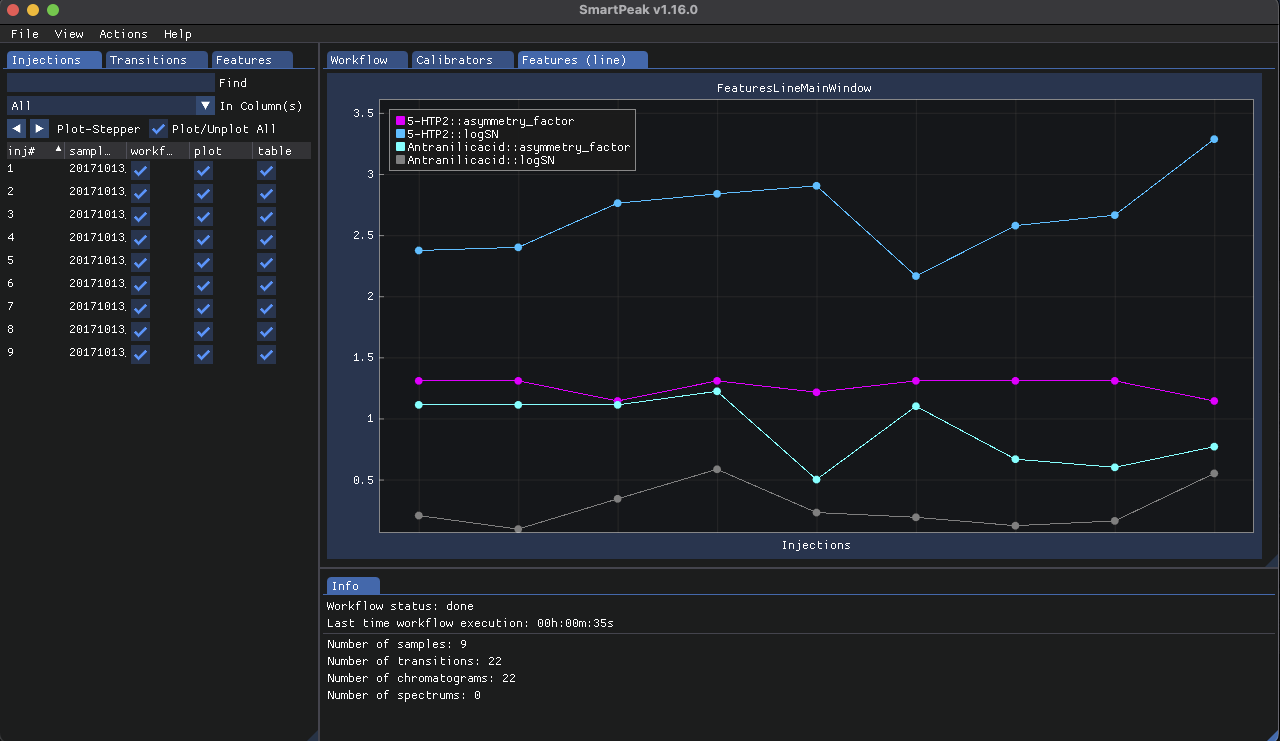
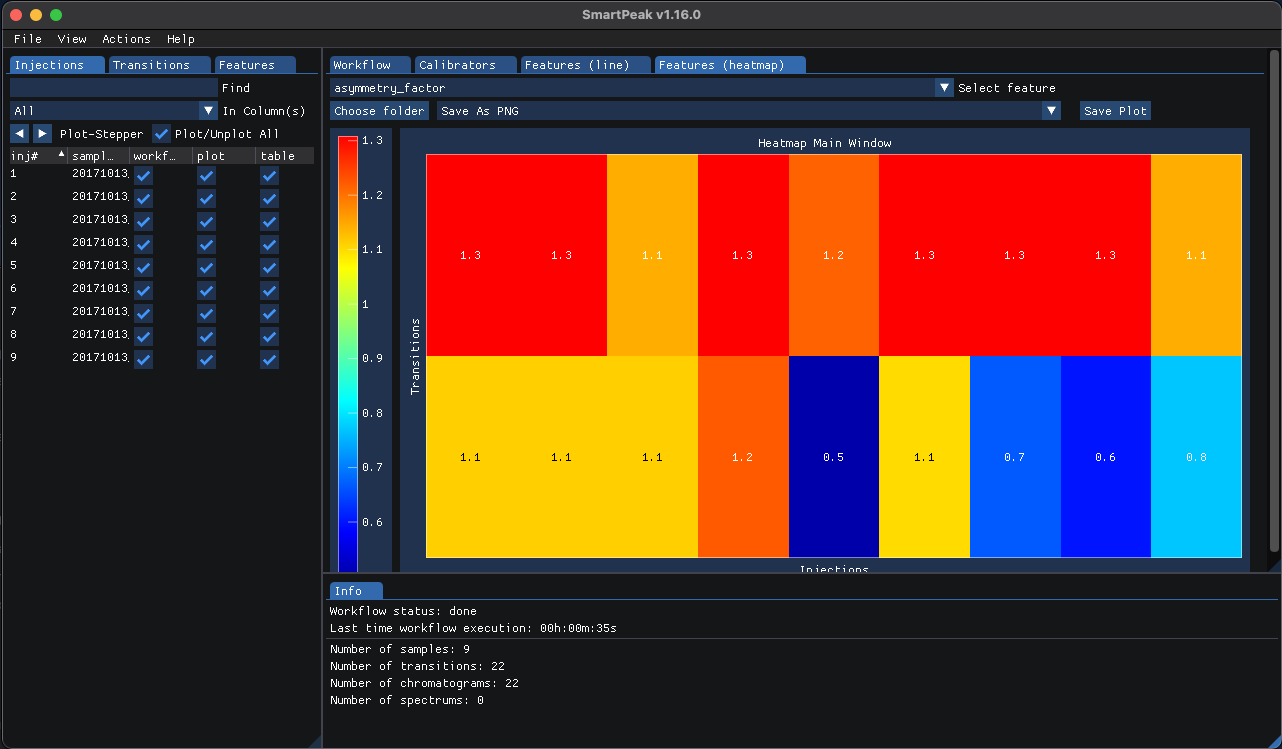
The features can also be plotted as a heatmap, under “view” select “Features (heatmap)” then select the “asymetry_factors” feature to display transition groups as a heatmap and compare the values from the same injection as shown below:
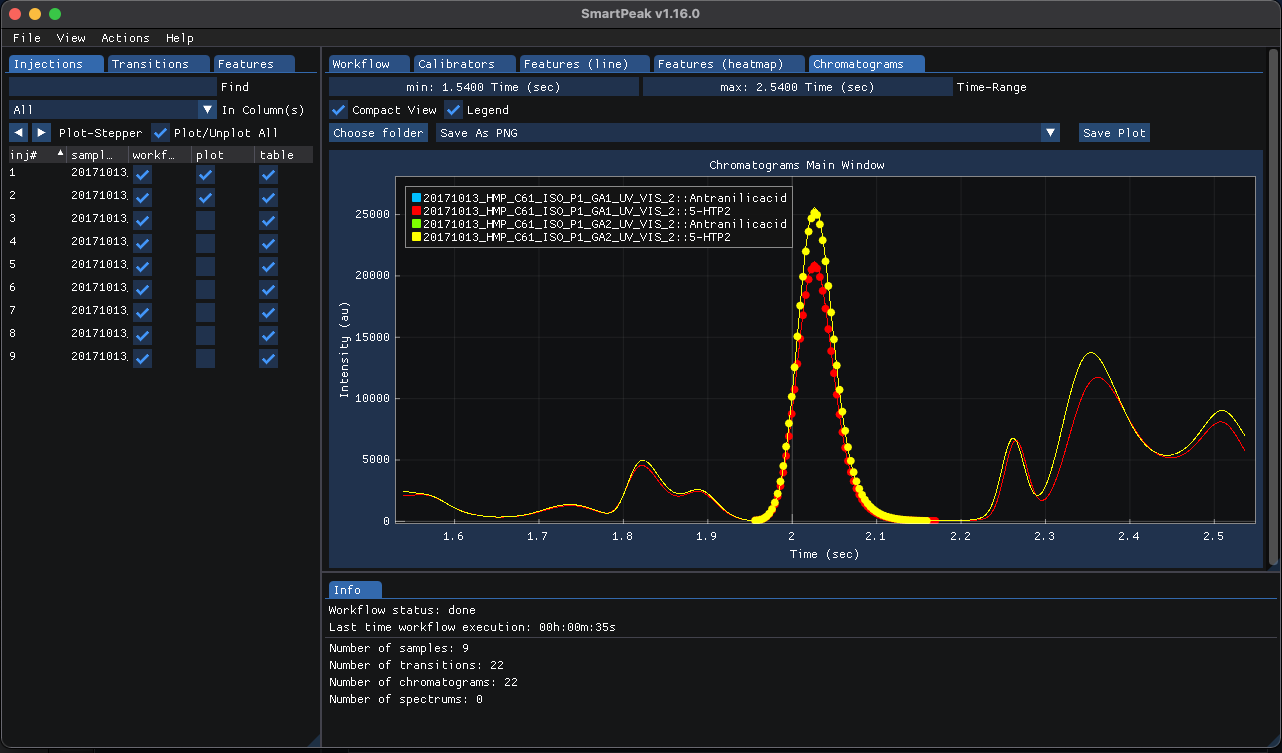
To plot the intensities over time for given injections and transitions, view the “chromatogram” from the “view” menu then select the injections and transitions to plot from their respective tabs on the left. The following shows the chromatogram for two injections using Antranilicacid and 5-HTP2 transitions and their intensity differences over time.
Running the workflow in SmartPeak
To run the analysis, please follow the steps for Using SmartPeak GUI or Using SmartPeak CLI to execute the workflow steps and review the results including plotting.
Reporting the results
To export the results, select “Report” from the “Actions” which will show the “Create Report” window:
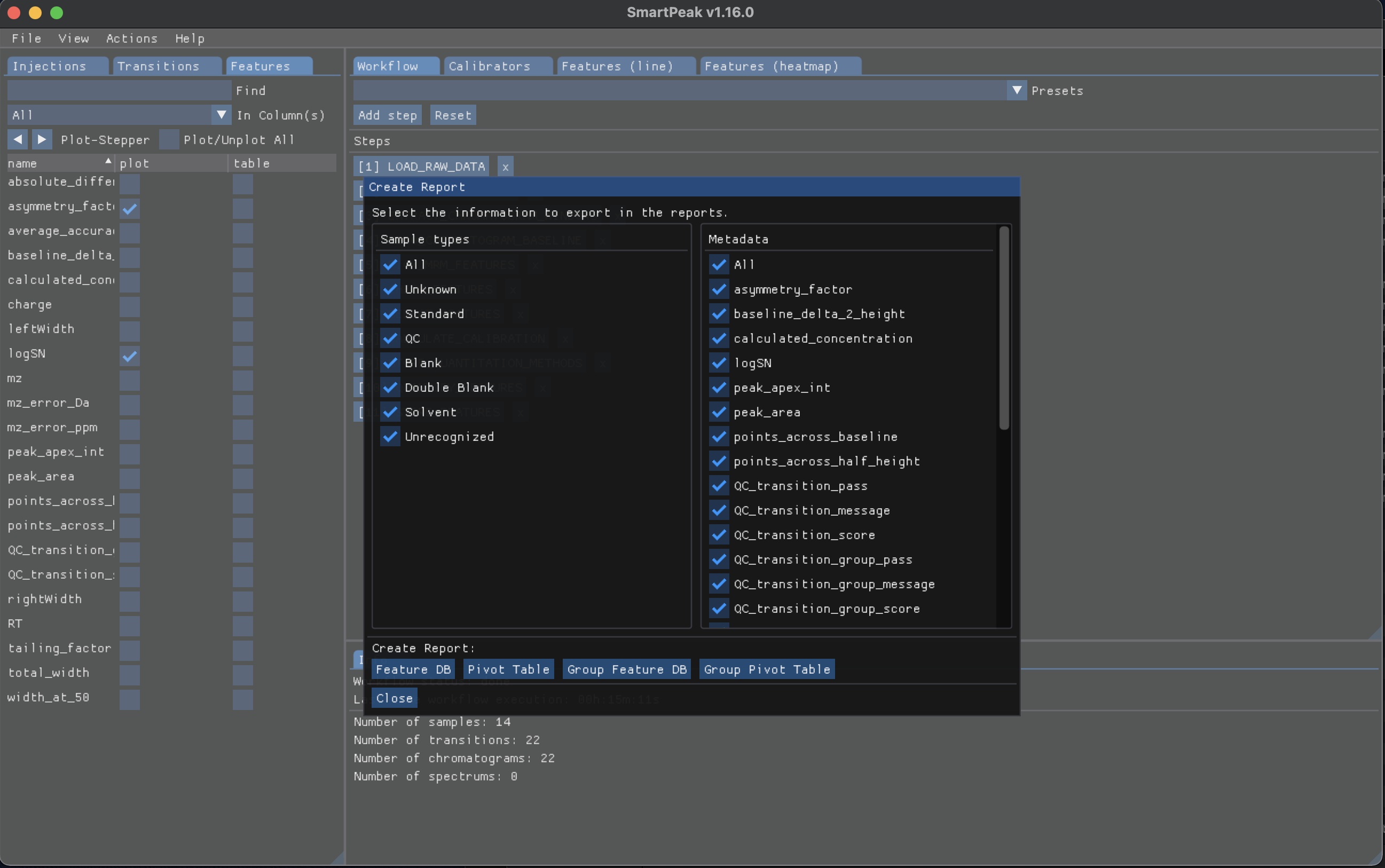
Based in the data you wish to export, select the desired “Sample types” from the left pane and select the “Metadata” from the right pane then click on of the buttons below to create the report with the selected items in the csv format. More details on exporting the results can be found in Export report.